
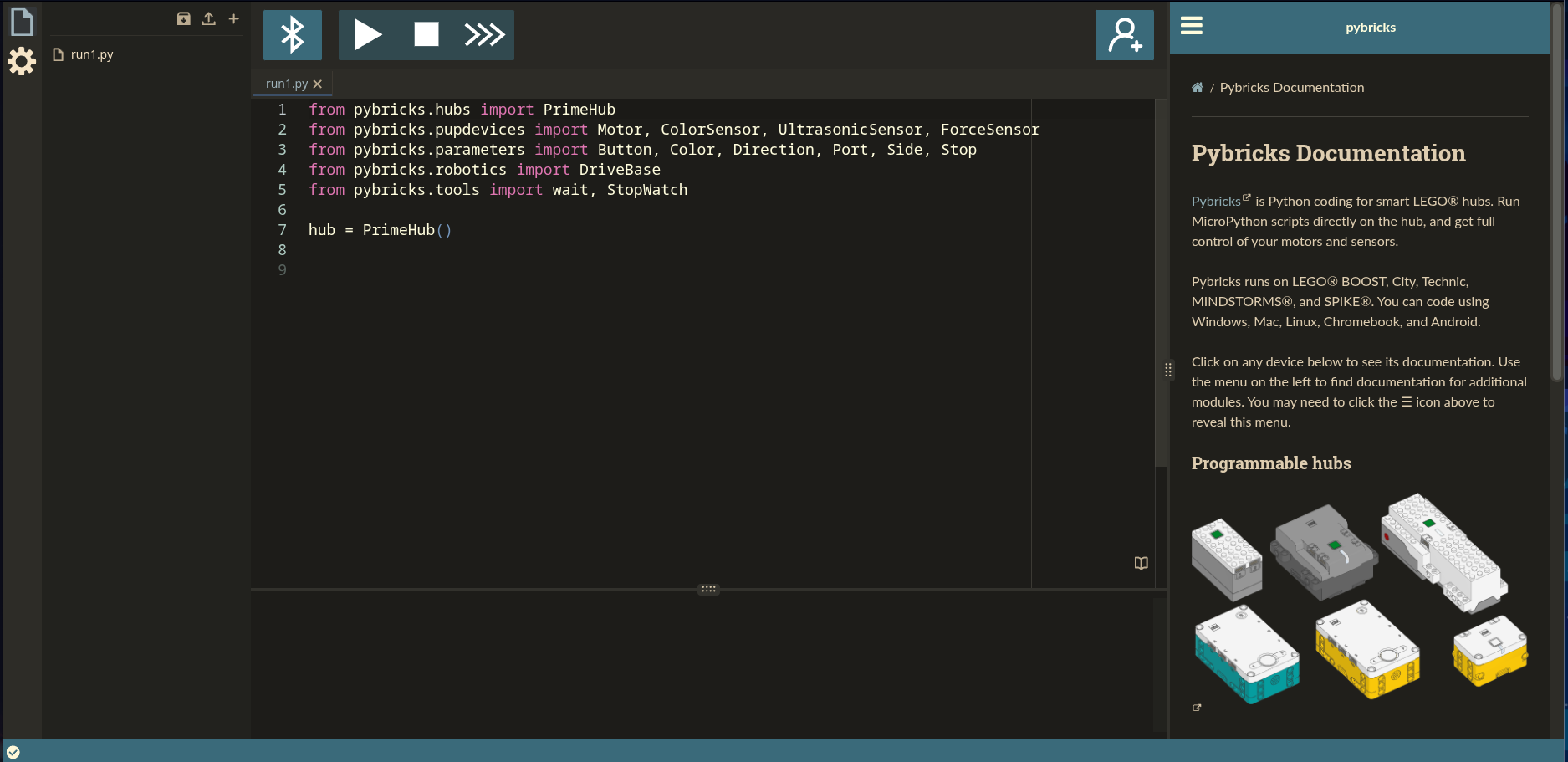
When you first start programming your robot, you either use LEGO Education Spike or, less commonly, EV3 Mindstorms. However, as your team progresses through seasons, you might hear some chatter about Pybricks and how teams have benefited from using it. In this post, we’ll be diving into what Pybricks really is, and why your team should consider using it.
What is Pybricks anyway?
Pybricks is, in many ways, similar to Spike and Mindstorms. It has Python programming as its main option, and block programming as a paid version. All of these programming tools use MicroPython to help optimize the storage and RAM on the hub. However, there are a few differences.
The Python programming uses Pybricks own library (pybricks) instead of using LEGO’s, and it has a many more modules and tools. An example would be that you can get fine-grained system info about things like the battery instead of guessing of the battery using Spike/Mindstorm’s indicator. The Pybricks coding platform is also fully web-based, so you can run it on any computer and you can also install it as a web app (PWA) for offline use.
How do you get started using Pybricks?
Since Pybricks uses different libraries and modules, you will have to burn the Pybricks firmware onto your hub. Just go to http://code.pybricks.com, click “Settings”, and click “Install Pybricks Firmware”. A few screens will pop up and it will give you step-by-step instructions on how to flash the firmware. Remember, this will erase all programs downloaded to the hub, so make sure to back them up.

Is Pybricks even useful?
Say you’re debating installing Pybricks on your main hub. Is it worth the effort to transfer all of your code to a new codebase? Absouloutely! Pybricks offers fine-grained control over every single aspect of your robot. One problem many teams wrangle with is something that is percieved very simple: getting your robot to move in a straight line. Since Spike doesn’t have a way to fix this, your either stuck with making a complicated move straight using gyro function in every single program. Pybricks solves this with a single line of code: use_gyro(True).

Usually, when you upload a program to your hub, it goes in numerical order. In Pybricks, you have to code a code switcher yourself! At first glance, this might seem like a giant headache, but it can actually streamline your testing so that you don’t have to click through all your programs to find the right one.
while runloop:
    if hub.buttons.pressed() == {Button.RIGHT} and current_program < prog_length: #Make sure not to go over and raise index error
        current_program += 1
        hub.display.number(current_program)
        wait(200)
    elif hub.buttons.pressed() == {Button.RIGHT} and current_program == prog_length:
        current_program = 0
        hub.display.number(current_program)
        wait(200)
    elif hub.buttons.pressed() == {Button.LEFT} and current_program > 0: #Make sure not to go under and raise index error
        current_program -= 1
        hub.display.number(current_program)
        wait(200)
    elif hub.buttons.pressed() == {Button.LEFT} and current_program == 0:
        current_program = prog_length
        hub.display.number(current_program)
        wait(200)
    elif hub.buttons.pressed() == {Button.CENTER}:
        wait(200)
        hub.display.icon(smiley)
        programs[current_program]()
Above is a how your program could look like for switching between programs. In Pybricks, you can also run async functions that run while other functions are running. This is useful if you wanted to keep track of how many points your robot is scoring.

Lastly, but there are definitely a lot more benefits, turning is more accurate in Pybricks. The drive base has a dedicated feature called .turn(angle:number, speed:number). Our testing compared a robot running Pybricks to one running Spike firmware, and Pybricks was more accurate every time.
What are you waiting for?
Now that you have learned what Pybricks is and some basic benefits, go and read the documentation at http://docs.pybricks.com and supercharge your code with higher accuracy!